

The Thailand Digital Arrival Card (TDAC) is a free online form that all non-Thai travelers must complete before entering Thailand. It takes under 5 minutes, costs nothing, and is submitted at tdac.immigration.go.th. This guide covers every step from opening the website to saving your QR code confirmation.
What You Need Before Starting TDAC
Before opening the TDAC website, have these items ready to complete registration in one sitting:
- Passport – you'll need the passport number, nationality, expiry date, and full name exactly as printed
- Flight or transport details – airline code and flight number (e.g., TG502), arrival date, and departure country
- Thailand accommodation address – hotel name and street address for your first night
The entire process takes 2–5 minutes on a phone or computer with internet access. No account creation or payment is required.
Step 1: Open the Official TDAC Website
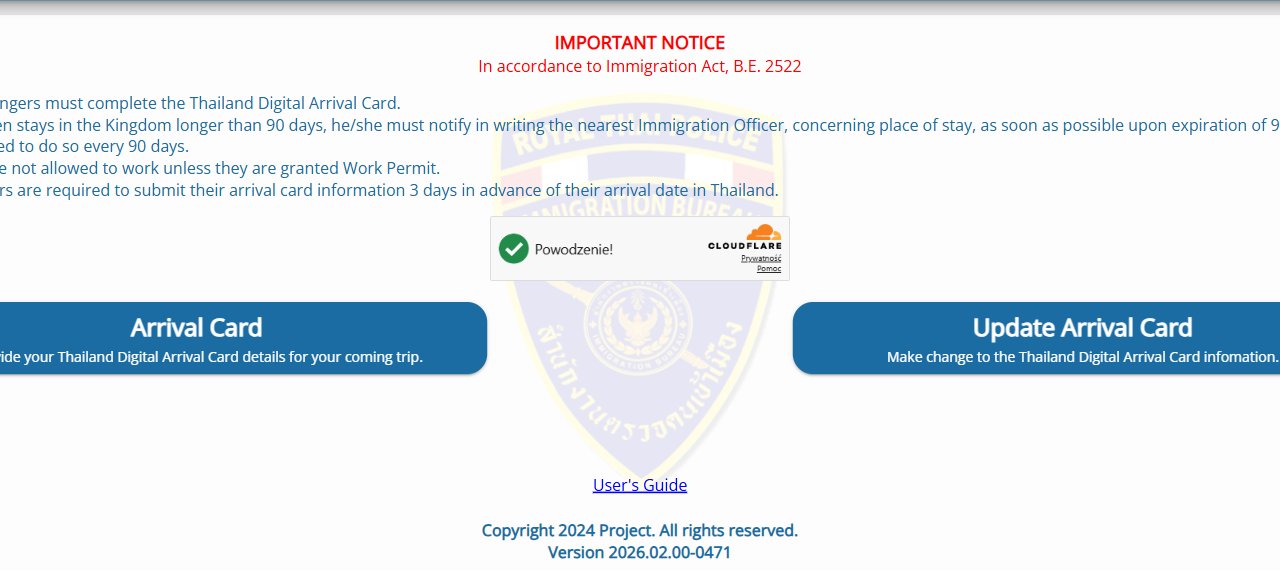
Go to tdac.immigration.go.th on your phone or browser. This is the only official TDAC portal operated by the Thai Immigration Bureau. The page will show a large "Arrival Card" button – click or tap it to begin.
Recommended browsers: Google Chrome and Firefox offer the best compatibility. Safari (iOS/Mac) typically works but occasionally has rendering issues on older versions.
Step 2: Enter Your Personal Information
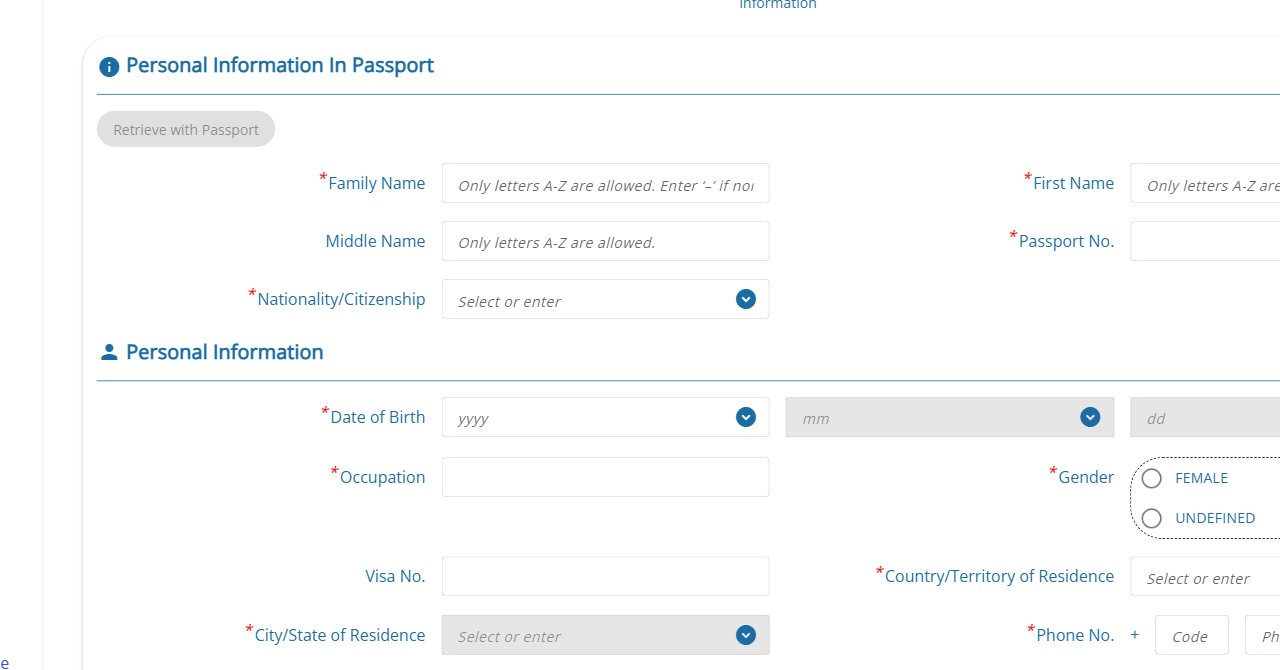
After clicking "Arrival Card", the 3-step form opens on Step 1: Personal Information. The form has two sub-sections: Personal Information In Passport and Personal Information. Enter each field exactly as it appears on your passport.
Family Name and First Name Fields
Enter your Family Name (surname) and First Name (given name) exactly as they appear on your passport data page. Use capital letters, A–Z only – no numbers, spaces within names, or special characters. If your passport shows "O'BRIEN", enter "OBRIEN".


Nationality / Citizenship Field
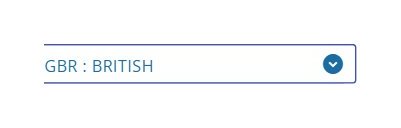
Click the Nationality/Citizenship dropdown and type your country code or country name to search. The system uses ISO country codes (e.g., GBR for United Kingdom, USA for United States, DEU for Germany). Select the country that issued your passport.
Date of Birth, Occupation and Gender
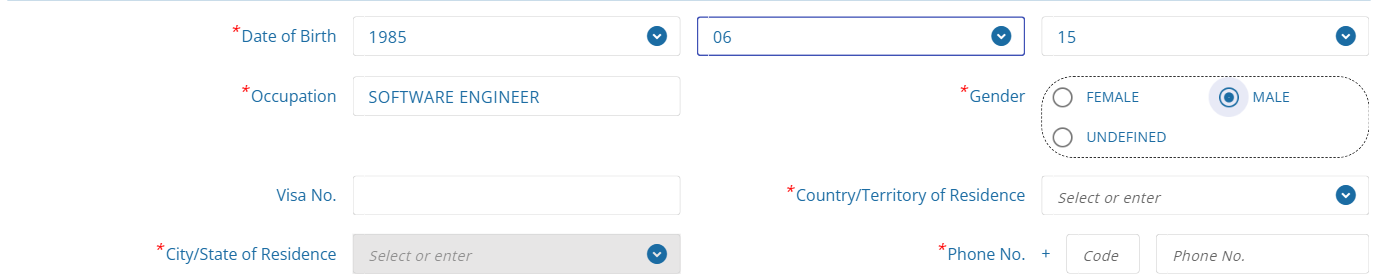
Select your Date of Birth using the three linked dropdowns (Year → Month → Day). The month and day dropdowns only activate after you've selected the year. Occupation is a free-text field – enter your job title in English. Gender has three options: FEMALE, MALE, or UNDEFINED.

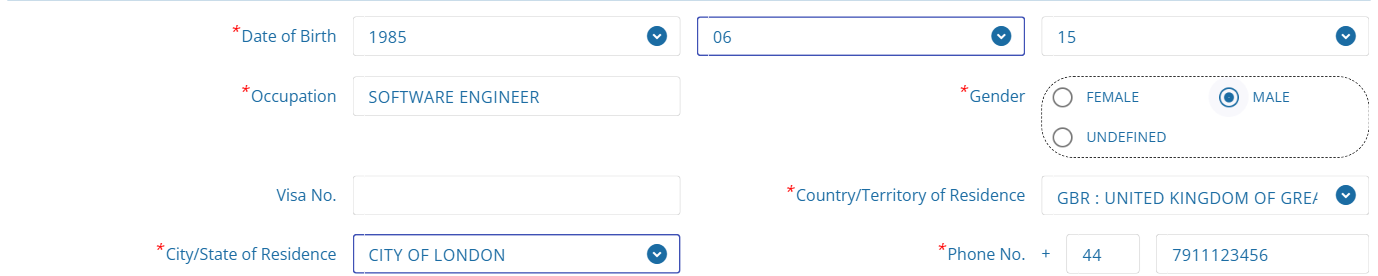
| Field | What to Enter | Critical Note |
|---|---|---|
| Family Name | Surname as on passport | Exact match required |
| First Name | Given name(s) as on passport | Capital letters A-Z only |
| Passport Number | Full number incl. letter prefixes (e.g., AB1234567) | Critical – must match exactly |
| Nationality | Type ISO code (GBR, USA, DEU…) or country name | Country that issued your passport |
| Date of Birth | Select Year, then Month, then Day | As on passport data page |
| Occupation | Your job title in English | Free text, any valid job |
| Gender | MALE / FEMALE / UNDEFINED | As on your passport |
| Country of Residence | Your home country (ISO code + name) | Where you currently live |
| Phone No. | Country code auto-fills; enter number without leading 0 | Used for QR confirmation |
Step 3: Enter Your Travel Details
After completing Step 1 (Personal Information), click "Continue" to reach Step 2: Trip & Accommodation Information. This tab has two sections: Arrival Information and Accommodation Information.
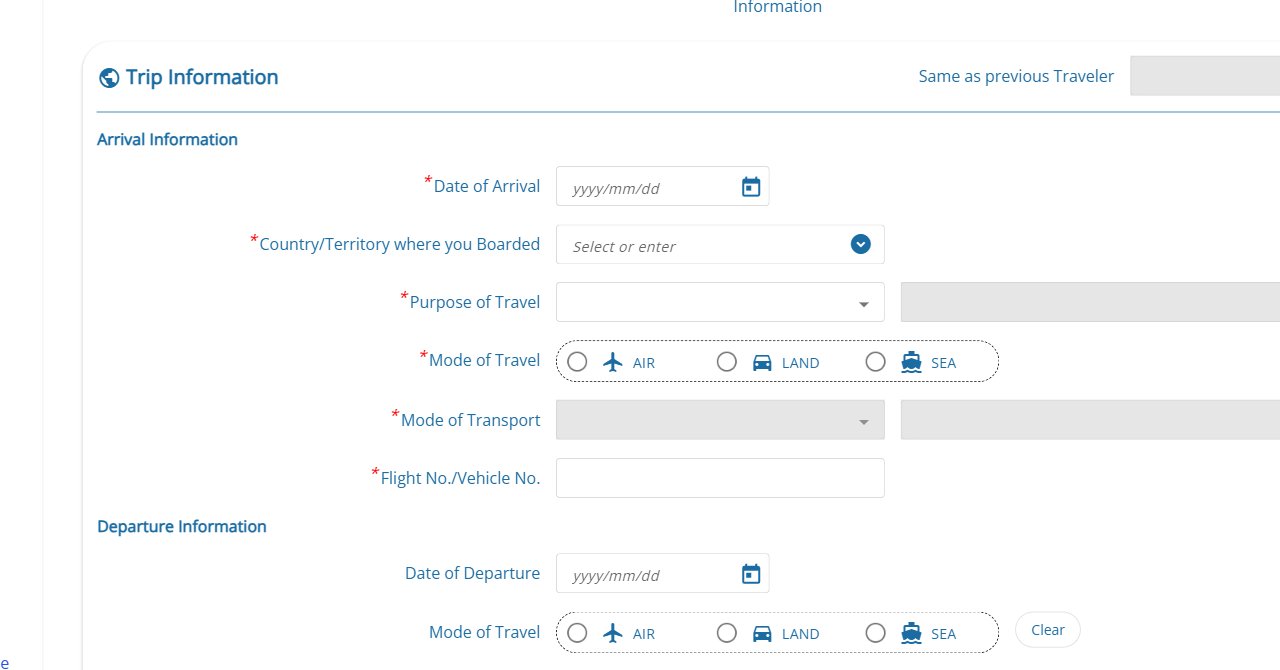
Key fields to complete in the Trip Information section:
TG502 not TG 502, BA9 not BA 09. Check your boarding pass or booking confirmation for the exact format.
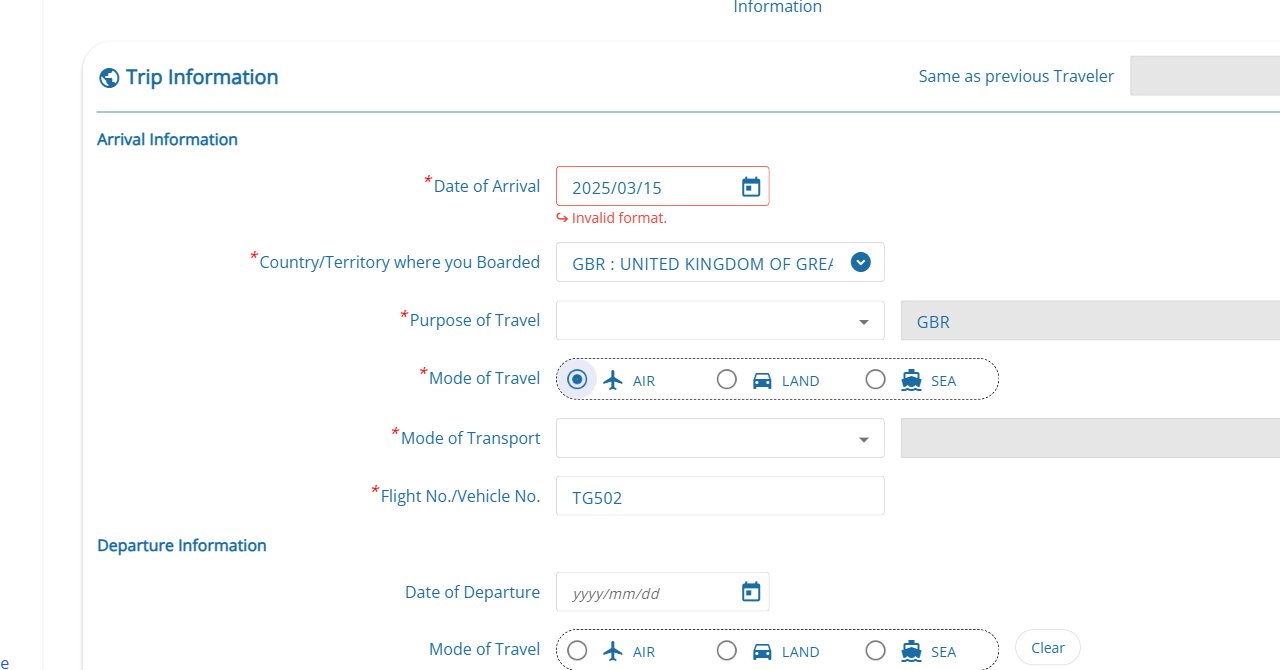
Other travel fields to complete:
- Date of Arrival – use the calendar icon (📅) to select your arrival date in correct format
- Country/Territory where you Boarded – country of your departing flight (type ISO code, e.g., GBR)
- Purpose of Travel – Holiday/Leisure, Business, Transit, or Other
- Mode of Travel – select AIR (by plane), LAND (by road), or SEA (by ship)
- Mode of Transport – enabled after selecting Mode of Travel; choose airline (e.g., Thai Airways)
- Flight No./Vehicle No. – your flight number without spaces (e.g., TG502)
Accommodation Address – What to Enter
You must provide the name and full address of your first accommodation in Thailand:
| Accommodation Type | What to Enter |
|---|---|
| Hotel or guesthouse | Hotel name + street address |
| Airbnb or rental apartment | Property address from listing confirmation |
| Friend or family | Their full Thai address |
| Cruise ship / yacht | Ship name + first Thai port |
Step 4: Review, Submit, and Save Your TDAC QR Code
Before submitting, carefully review all fields – particularly your passport number and flight number. Small errors cause immigration delays.
Click "Submit" or "Confirm" to finalize your TDAC registration. After submission:
- A confirmation screen shows your TDAC QR code
- An email confirmation is sent to the address you provided
- The QR code is your proof of TDAC completion
When to Submit – The 72-Hour Rule
The TDAC submission window opens 72 hours (3 days) before your arrival date. You can submit at any time within this window, including on the day of arrival.
| When | Possible? | Notes |
|---|---|---|
| 3 days before departure | ✓ Best | Maximum window, no risk |
| Day before departure | ✓ Good | Recommended |
| Morning of departure | ✓ OK | Complete before leaving for airport |
| At airport check-in | ⚠ Risky | Airlines may check TDAC at check-in |
| On the plane | ✗ Not safe | Limited/no WiFi; not recommended |
| After landing | ✗ Not available | Must be completed before arrival |
Completing TDAC on Your Phone (iOS and Android)
The official TDAC website is mobile-optimized and works on both iOS (iPhone/iPad) and Android devices.
For iPhone / iOS:
- Use Safari or Chrome for iOS – both work; Chrome is more reliable
- Screenshot: Side button + Volume Up simultaneously
- Save to Photos app for quick access at the airport
For Android:
- Google Chrome for Android is recommended
- Screenshot: Power + Volume Down (varies by device)
- Consider backing up to Google Photos for cloud access
TDAC Troubleshooting: Common Issues and Fixes
Website Not Loading
- Clear browser cache and cookies
- Switch to Chrome or Firefox
- Disable VPN – this is the #1 cause of access issues
- Try a different device or WiFi network
- Check for scheduled maintenance on the Thai Immigration website
"Invalid flight number" Error
- Remove all spaces: enter
TG502notTG 502 - Verify the airline code on your booking confirmation
- For charter flights, check the airline code on your physical ticket
QR Code Not Appearing
- Scroll down on the confirmation page – QR code appears below summary
- Check your email inbox and spam folder
- Refresh the confirmation page once (do NOT re-submit)
Wrong Information Entered
- Before submitting: correct the field before clicking Submit
- After submitting: contact Thai Immigration Bureau for correction guidance
- Minor errors (typo in hotel address) are generally not a problem at immigration
- Passport number errors should be corrected before travel
Frequently Asked Questions
Yes, completely free. The official TDAC at tdac.immigration.go.th charges no fee. Any website charging you is an unofficial service – avoid them.
No. A screenshot on your phone is fully accepted by airlines and immigration officers. No printing required. Ensure your screen is bright when showing the QR code.
Each traveler needs their own individual TDAC – there is no group submission. You can complete the form on behalf of a family member using your device. Children with passports need their own TDAC.
If your flight number or arrival date changes significantly, submit a new TDAC with updated information. You can submit a new form within the 72-hour window of your new arrival date.
TDAC stands for Thailand Digital Arrival Card. It replaced the paper TM6 card as Thailand's official pre-arrival registration system as of May 1, 2025.
Your airline may deny boarding. If you do land without TDAC, you will face immigration delays and may need to complete the form on your phone at the border. In serious cases, entry can be denied. Always complete TDAC before leaving for the airport.
TDAC in 4 Simple Steps
1. Open tdac.immigration.go.th and click "Arrival Card" → 2. Enter passport details → 3. Enter flight number and hotel address → 4. Submit and screenshot your QR code.